Russ' Do It Yourself Home Workshop

Finding Fixes to Just About Anything and Everything

Changing the Location (Moving) OneDrive Folder on Windows 8.1 Doesn’t Work

Posted by Russell Wright on June 3, 2014

Best I can tell, moving the location of your OneDrive folder from one user profile folder to another doesn’t work.

Navigating to my SkyDrive (OneDrive) folder in my former user profile (c:\users\Russell)…

image

And attempting to change it to my new profile location, c:\users\rwright\onedrive…

image

Selecting “Yes…”

image

After a little while of Windows churning…

image

Just FYI, I’ve tried moving it to a folder named SkyDrive and OneDrive and both give the same results.

If it can’t be moved here, where can it be moved?  And why?

Here’s the response:

Every Microsoft account (user account) will have it’s own files and settings. At the moment, you are trying to move OneDrive folder to a different Users folder (different user account). This will not be possible due to security reasons related to the Microsoft account that you use to access OneDrive.

Again, each user account will have it’s own OneDrive folder (in case it’s a Microsoft account).

Also, you can’t switch between accounts in the OneDrive app. When you sign in to a PC with your Microsoft account, you’re automatically signed in to OneDrive with that account. You can still get to OneDrive files for a different account by going to the OneDrive website.

For reference:

http://windows.microsoft.com/en-us/windows-8/onedrive-app-faq

http://answers.microsoft.com/en-us/onedrive/forum/sdfiles-sdsync/how-do-i-change-the-location-of-the-onedrive/09f3e1f0-38a7-4f09-a71b-d92bbc95cace

Please let us know if you have more queries on Windows.

The reference for moving a OneDrive folder is exactly what I tried to do.

How can I move my OneDrive to a different location on my PC?
  1. Open File Explorer.

  2. Press and hold or right-click OneDrive in the left pane.

  3. Tap or click Properties, and then tap or click the Location tab.

  4. Tap or click Move.

  5. Pick any folder that’s on a drive formatted with the NTFS file system, and then tap or click Select Folder.

  6. In the Move Folder dialog box, tap or click Yes.


And more FAQ information:

Can I sign in with a different account to browse a different OneDrive?

You can’t switch between accounts in the OneDrive app. When you sign in to a PC with your Microsoft account, you’re automatically signed in to OneDrive with that account. You can still get to OneDrive files for a different account by going to the OneDrive website.


So, what I want to do is use a new domain account for logging on to my PC and simply “link” my domain account to my existing OneDrive account.  Doesn’t sound like a big deal, does it?  Worked fine on Windows 7.

And then, in this OLD response, Edmond_A says to use the “Unlink” function, which of course he doesn’t detail where one finds it or how one runs it, but I can only assume it’s for Windows 7, since it’s so old.

Edmond_A. replied on April 23, 2012

Microsoft Forum Moderator

You must use the Unlink function and go through the first-run experience where you will have the option to change the location of the OneDrive folder on your computer.


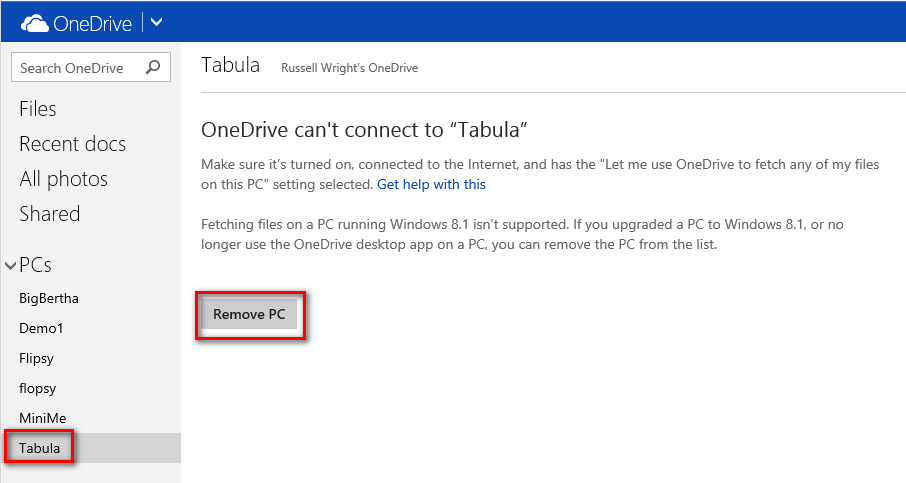
If you go online, you can see how to remove PCs, but this appears to be for fetching files and is no longer supported on Windows 8.1, so this appears to be a dead end.  I’ll go ahead and remove Tabula from the list of PCs.
image

So if I go to the OneDrive settings, it is not obvious how to set an account for OneDrive to use.  Wouldn’t it make sense here to store the account OneDrive uses to log in?  Isn’t that how it worked on Windows 7?

image

When I look at my accounts under PC Settings on the metro side, it shows my domain account and my Microsoft account, but no where can I find how to link a OneDrive account back to my PC.

So my question remains.  How do I associate my domain account to my OneDrive account and move its current location, which is under my previous profile?  This should be easy, guys…


Posted in Computer Software | Leave a Comment »

Lenovo Yoga 13 Screen Won’t Autorotate

Posted by Russell Wright on May 24, 2014

There seems to be an outstanding issue for many with the Lenovo Yoga 13 where the screen doesn’t automatically rotate.  I know on mine I’ve had this issue. Here are a couple of things to check.

First, when you are in notebook (laptop) mode, on the right edge of the keyboard portion of the machine is a small button.  This locks/unlocks the screen rotation.

image

Reading through this post on the Lenovo support forum gave me lots of ideas of things to check.  I usually go to the end of these types of posts to see if there’s been any resolution, instead of just complaints.  Some of the ideas…

  • Reboot the computer
  • Reinstall the chipset drivers
  • Reinstall Windows
  • Take the computer back where you bought it

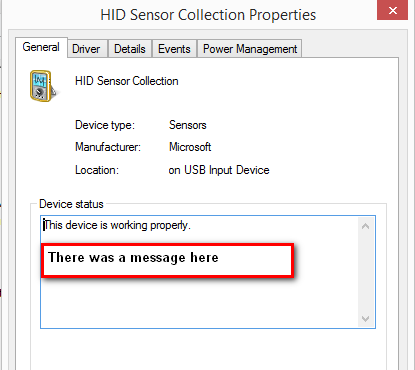
What I found in device manager was a message in the device status area that stated something in the Sensor Collection couldn’t start.  Unfortunately, I didn’t capture it at the time.  However, I simply disabled and enabled the HID Sensor Collection and the screen rotation function began working again.

image

image

So, I’m relieved to know it’s not a hardware issue, but what caused this to become “broken” is unknown at this time.

Posted in Computer Repair | 6 Comments »

Moving an ESXi VM from One Datastore to Another

Posted by Russell Wright on May 16, 2014

I installed a Samsung EVO 840 1TB SSD in our Dell R520 that is running ESXi.  We currently have 1TB RAID 0 and 2TB RAID 0 arrays made with Constellation ES.2 drives, so I thought I’d try an SSD to see how much "better-er" I could make it.

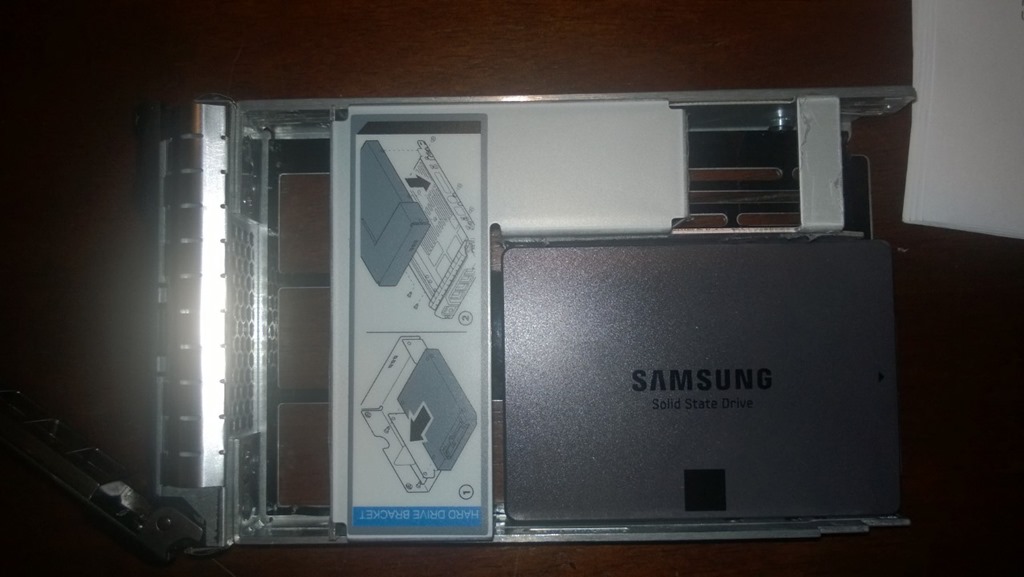
To make this work you can use a standard drive tray (purchased from eBay for $11.79) and a 3.5-to-2.5 SATA adapter (also purchased from eBay for $9.99). In this case, I installed a Samsung 840 EVO 1TB SSD that I also acquired from eBay ($445.00).

WP_20140515_20_37_02_Pro

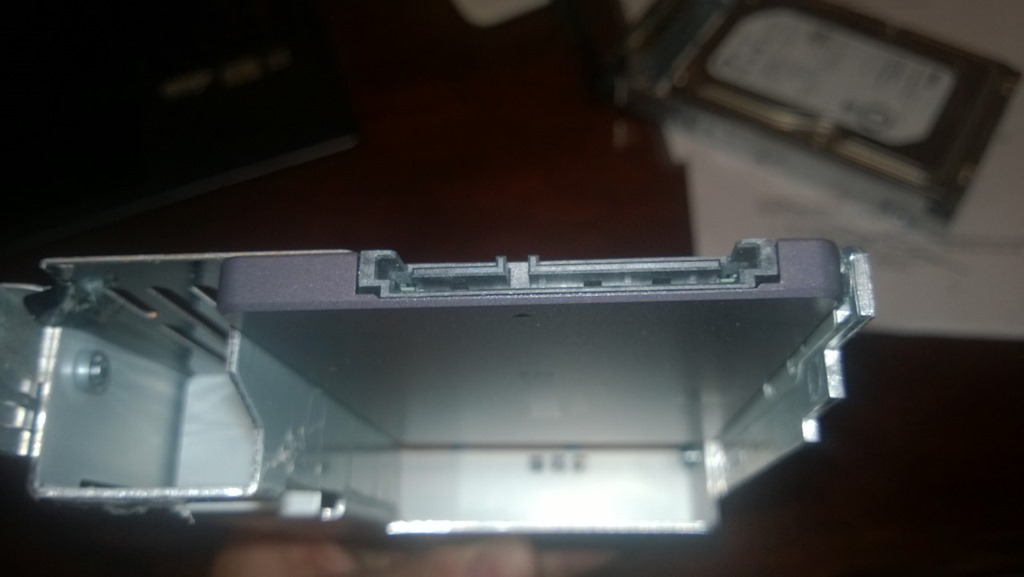
You can see I failed to peel off all the plastic protective coating on the adapter, but hopefully that won’t be a big deal.  Just be sure to install the two screws on the adapter and the SSD prior to installing the adapter in the drive tray!

WP_20140515_20_37_19_Pro

WP_20140515_20_36_53_Pro

I powered everything down and slid it in and then powered it all back up.  I probably didn’t need to do that (hot swap should work), but I wanted to compare the alignment of my adapter with one of the installed drives to make sure it looked like it was going to match up okay.  You never know when you use third party hardware.

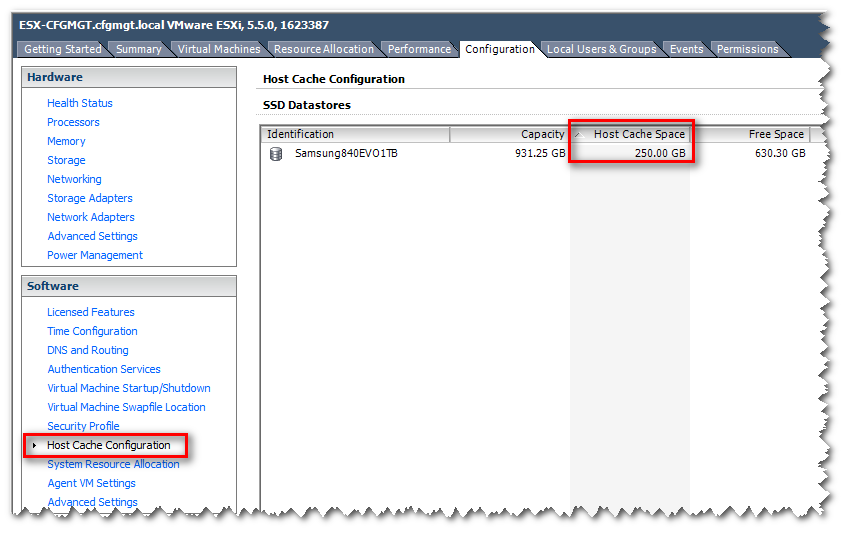
Once you get the SSD installed, you can choose to make all or part of it a cache for VMWare to use.  You can set this in the Host Cache Configuration software setting in the Configuration tab of the vSphere client.

image

Right-clicking on the SSD and selecting Properties… will allow you to select the amount of space you want to use for a host cache.

image

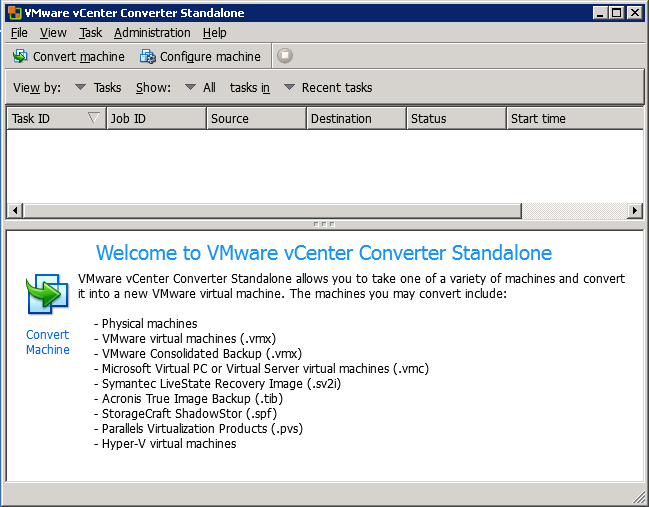
So my goal was to move my SQL VM first.  There are many ways documented to do this, such as using the manual vmkfstools method, as documented in this thread by telecastle.  However, in my experience I’ve found it’s much easier to use VMWare vCenter Converter Standalone to move VMs around. 

image

So, let’s do this and see how it works.  One picture is worth 1000 words, so here are some pictures to document the process.

First, you need to get the s/w, if you don’t already have it.  Google "download vmware standalone converter" and you should find it here.  You’ll have to register and log in to access it.

image

We are starting a conversion process and selecting the source, which is an ESXi box.

image

Make sure the VM is powered off.

image

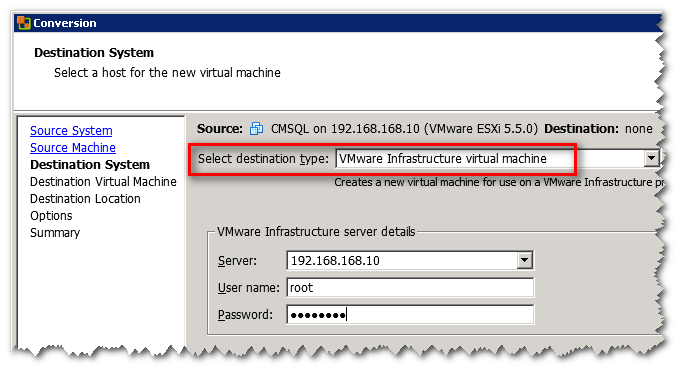
The destination is the same ESXi machine.

image

We need to give it a new name…and it can’t be the same as one in the current inventory.

image

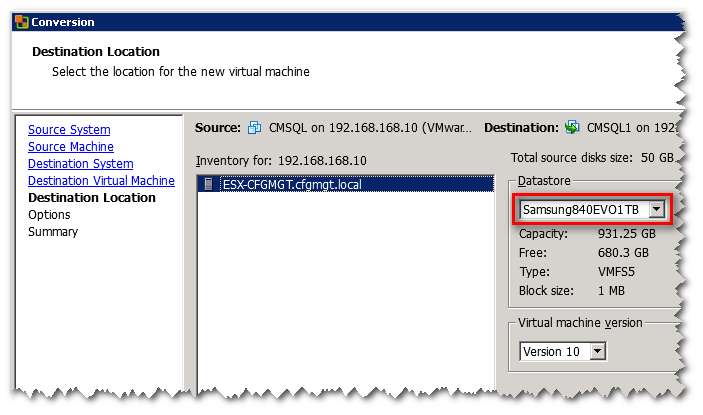
Select the SSD datastore.  Note that, even though I don’t show it here, you should be careful about what Virtual machine version you choose.  I initially chose Version 10 (wasn’t paying attention) and found that the vSphere client can’t manage any VM over version 9.  Also, it can’t create a VM over version 8.  So, I decided to go back and convert my Version 10 to Version 8.

image

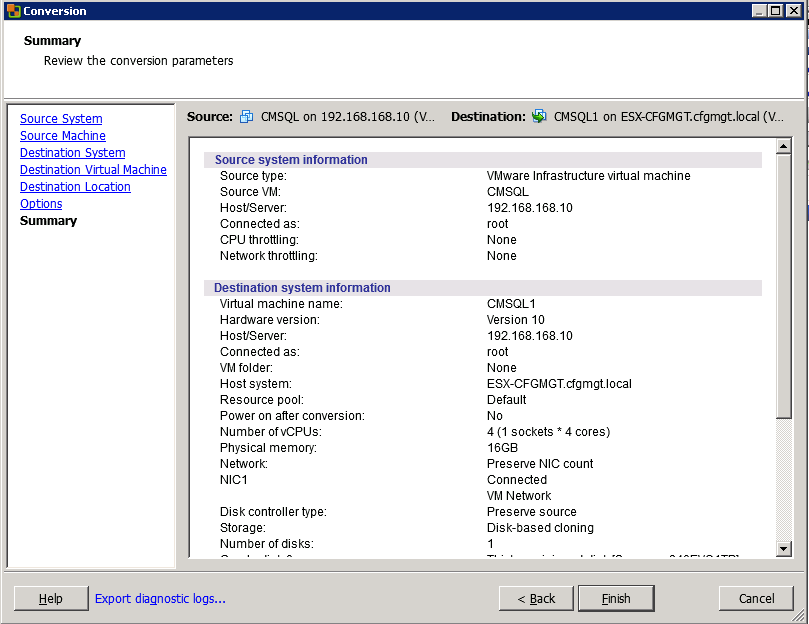
The job is almost ready to go.  You have one last time to make some edits.

image

Now we’re ready to start it!

image

And the job has been submitted and is off and running.  Now just sit back, relax, and exercise your patience.  I don’t know about you, but I much prefer this to the command line stuff.

image

Posted in Computer Software | Leave a Comment »

Dropped Connections on SAP and the KeepAlive (rdisp/keepalive) Parameter

Posted by Russell Wright on April 28, 2014

We were experiencing issues with our SAP GUI connections dropping somewhat randomly, but more so when connected wirelessly or through VPN to our SonicWALL TZ 200.  This is probably a result of the SonicWALL aggressively closing connections and therefore causing SAP to drop the connection to the client.  In the SM21 log, a dropped connection entry looks like this.

image

There are several parameters in SAP that deal with connections, but we’re not talking about wanting to forcibly log off clients from our demo/test system.  What we want is to keep the connection to SAP alive as long as possible.  SAP OSS note 27320 provides a better definition of a couple of the parameters in question.  The definitions are repeated here for convenience.

rdisp/keepalive
——————–
Parameter for application servers, unit seconds, default 1200.
If the frontend has not sent any data to the application server for "keepalive" seconds, the
application server sends a short "Ping" message to the frontend. The frontend should answer within
the next 40 seconds with "Pong", otherwise the application server assumes that the link is dead and
releases all resources to the corresponding user. An error line "DP_CONN_DEAD" then appears in the
trace file dev_disp.
This usually occurs when a user switches off their PC without carrying out the shutdown procedure.
A value of 0 means that no check occurs.

rdisp/gui_auto_logout
————————-
Parameter for application servers, unit seconds, default 0.
If the frontend has not sent any data to the application server for "gui_auto_logout" seconds, the
frontend closes the user connection and releases the resources.
A value of 0 means that no users are logged off automatically.

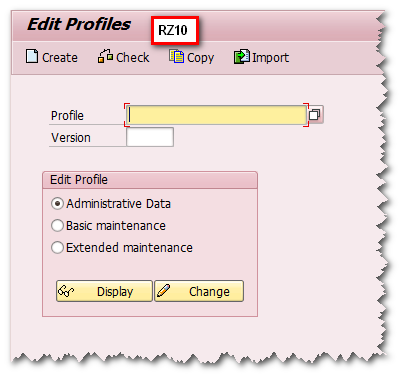
One way to carry out this change, use the RZ10 transaction.

image

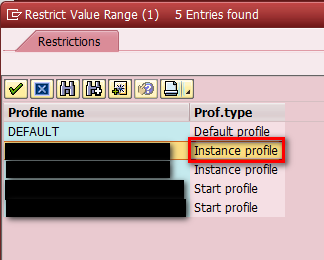
Select the appropriate Instance profile.

image

Select Extended maintenance and the Change button.

image

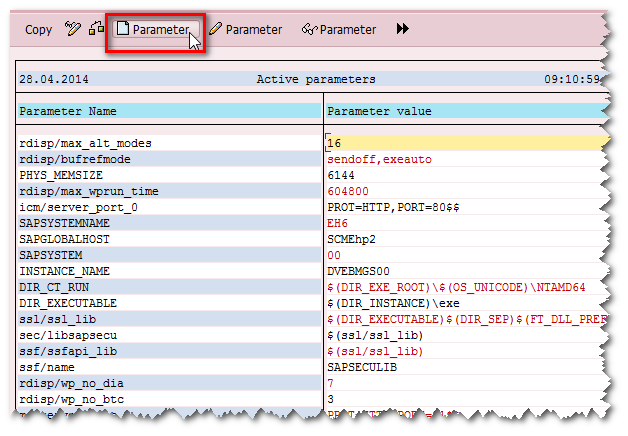
Select the Parameter button to add a new parameter.


image

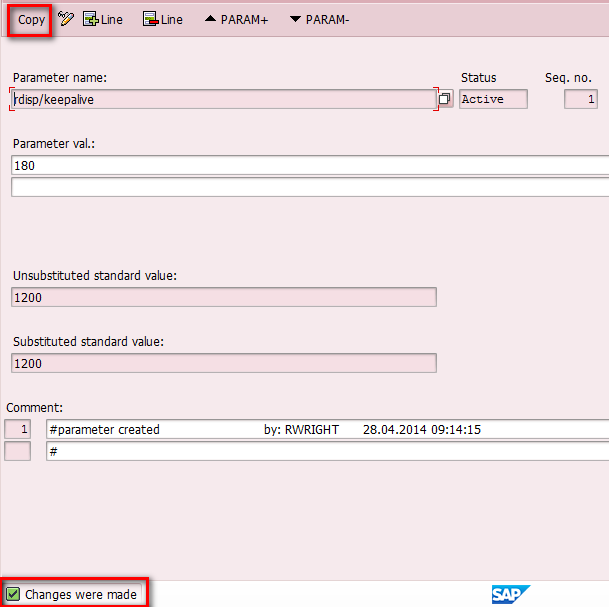
Enter the rdisp/keepalive parameter and a number of seconds.  I’ve entered 180 seconds (3 minutes) in this case.  Press Enter to validate.

image

Select Copy.

image

You should see the parameter entered.

image

When you back out of the transaction, it will ask you to save your changes.

image

You should see a validation that the changes were accepted.

image

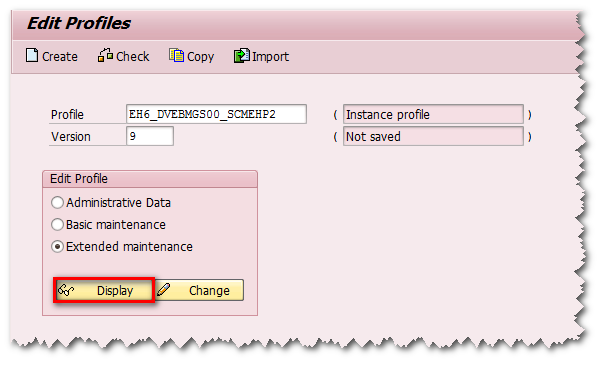
Now check your work by selecting the profile and selecting Display.

image

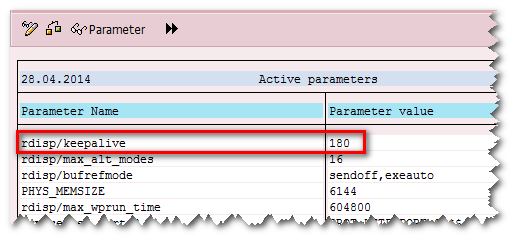
You should see the rdisp/keepalive parameter.

image

You now need to recycle your SAP instance for the parameter to be enforced.

image

Posted in Computer Software, SAP | 3 Comments »

Getting SQL Express to Listen So You Can Connect Remotely

Posted by Russell Wright on April 22, 2014

Dang!  We had a situation where a new tool we were implementing in our back office, BillQuick Web Services 2014, would not use SQL Server since we purchased the "Pro" version and not the "Enterprise" version.  Unfortunately, it appears the trial version we installed has all the enterprise version capabilities and, after entering our license information, we were locked down to the pro version and it wouldn’t connect to the SQL Server anymore.

So, that meant I needed to install SQL Express to support the tool.  Okay, no biggie…except for the fact that SQL Express does not enabled Named Pipes or TCP/IP protocols, by default.  This took me a bit to figure out.

This is not a new problem, as posted by Peter van Ooijen in 2006.  Some things never change…

The easy way to fix this is to use SQL Server Configuration Manager.

image

Navigate to the Protocols section for your SQL Express instance and switch it on! 

image

And if that’s not enough, you need to change the TCP/IP properties to listen on the correct port.  I set the port to 1077 (one the SQL Server is NOT listening on).  It appears if you set it in the the IPAll section, the same port will be used for each IP address and you only have to enter it one time.

image

Oh, and then recycle your SQL server instance!

The connection string to use looks like this.

SQLServer\Instance,Port

image


Posted in Computer Software, SQL Server | Leave a Comment »

First Alert 9120B Smoke Detector Keeps Chirping/Beeping

Posted by Russell Wright on April 4, 2014

I had a smoke detector that kept chirping.  Thinking it was a battery problem, I replaced the battery even though the battery that was in it tested out okay.  Now, this is a smoke detector located at the top of the stairs, so I had to get my folding ladder out to get to it.  You know…two ladder feet on a stair and the other two feet of the ladder on the top of the stair landing with 6′-1", 210 lb. me standing on the ladder, reaching for the ceiling.  Not a pretty sight.  And, to make matters worse, the dang thing kept on beeping after I replaced the battery.

image

So, standing on the ladder (I didn’t put it away because I thought this might happen), I removed the smoke detector by rotating it CCW to detach it from its base so I could get to the plug on the back.  After unplugging it (and not falling off the ladder) I took it downstairs and removed the cover.  There are three plastic tabs/clips that can be released, one-at-a-time, to allow you to remove the cover.  I took the naked smoke detector out to the garage and fired up the air compressor (what…you don’t have one?) and blew the sensor clean.  I reassembled the detector (snapped it together) and put the original battery back in it and voila, no more chirping!

This detector is located near our attic fan, so I’m thinking it gets a lot of dust and particulate matter blown by it when the fan runs.  However, it looked very clean on the inside, but blowing it out appears to have done the trick.

Posted in Home Repair, Misc Repair | 15 Comments »

Fix Your Logitech H760 Wireless Headphones Before They Become Worthless

Posted by Russell Wright on January 28, 2014

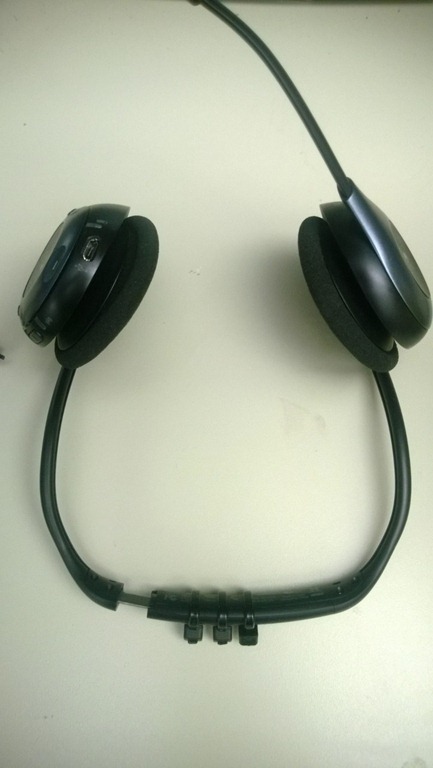
If you’re like me and have a pair of these fairly expensive ($60-$80) Logitech headphones, model H760, you might find their weakness is in the plastic that is part of the headband that connects the headphones together.  Many people have issues with the plastic breaking, rendering them useless.  If you contact Logitech and have a receipt, they’ll probably replace them for you because they’ve had so many complaints. 

I couldn’t find my receipt so I "fixed" them using some tie wraps as shown.  There was enough left of the plastic this seems to be holding.  If you don’t have one of these tie wrap guns,  67076 Adjustable Cable Tie GunI’d suggest you get one for all the "rigging" you do around your home.
WP_20140128_002


WP_20140128_003

Posted in Misc Repair | 1 Comment »

Setting SSIS Variables the SQL Way: Create a Directory or Folder using Dates

Posted by Russell Wright on January 16, 2014

Okay, I’m not an SSIS expert, but I do use it quite a bit.  So, when I had to do some “coding” in the script task recently I was able to get through it, but the next time I had to do something I wanted to determine an alternate, and possibly more expedient, way of accomplishing this simple task:  Set a variable based on dates or other easily generated data.

My task was pretty simple.  Create a folder structure during the execution of an SSIS package in which the files received during the B2B process can be placed.  It’s been done a million times, but there’s always a new and different way to accomplish this simple feat.  And, with SSIS, there are always intricacies of different data connection types and other obtuse settings that are not necessarily obvious to the uninitiated.

My inspiration came from The Data Queen and this blog post, “How to Set and Use Variables in SSIS Execute SQL Task.”  Basically what you are doing here is selecting a single row results set using the Execute SQL task and setting (initializing) your variable to one of the columns returned from the query. 

image

This gives you a pretty flexible approach where you can create a name/value pair table, such as this, and select a value from the table with which you initialize your SSIS variable.

CREATE TABLE [dbo].[TRAXSSISParms](
[Name] [varchar](255) NOT NULL,
[Value] [varchar](255) NOT NULL,
[Description] [varchar](255) NULL
) ON [PRIMARY]

But what I wanted to do wasn’t really about storing values to retrieve (well it was this too, but that’s not really what I’m talking about right now), but instead calculate values in order to create a dynamic folder name each time the package is executed.  And, I wanted to use regular SQL to do this, if possible.  Here’s what I found.

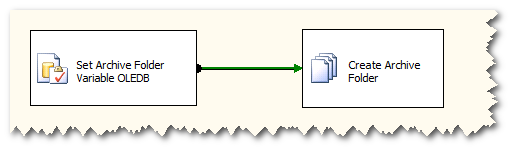
We will be using the Execute SQL Task and the File System Task.  I’ve named them Set Archive Folder Variable OLEDB and Create Archive Folder.  The reason I added OLEDB in the name is that, in this case, we are using the OLEDB data connection type, as opposed to the ADO.NET connection type.  More on that later.

image

User variables are created and scoped at the package level.  This process is not very intuitive if you’ve never done it before or, if you’re like me, you do it once-in-a-blue-moon.

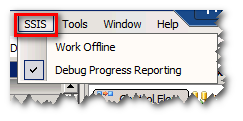
You first have to make sure the Variables pane is enabled.  If you get a short menu, that means your focus is not on the SSIS designer canvas, as the menus change based on your current context (this is soooo OS/2-ish). 

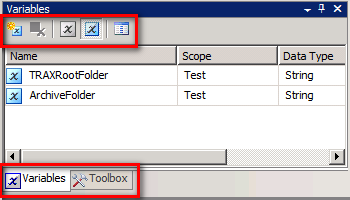
image  image

You should now have a Variables tab along with a Toolbox tab.  The icons along the top are pretty self-explanatory if you hover over each one:  Create a variable, delete a variable, show system variables, show all variables, and add/remove columns to the menu display.  Here you can see my two variables, TRAXRootFolder and ArchiveFolder.  My package name is Test, so the scope is at the package level.  Both are String data types.

image

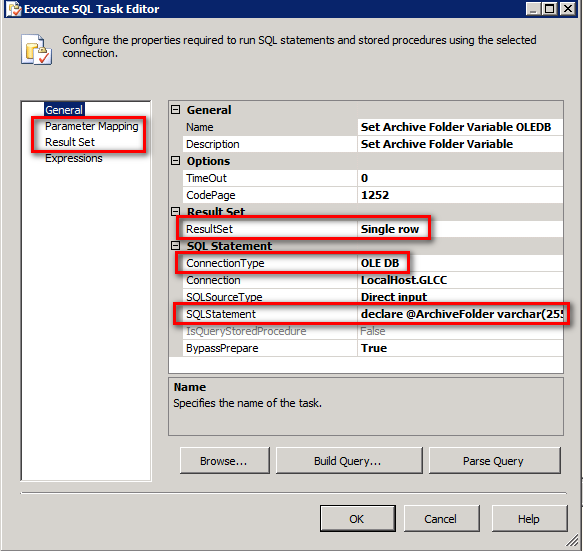
Let’s look at the settings of the Execute SQL Task.  I’ve highlighted the important areas and will discuss each one.

image

The SQLStatement will show you very quickly what I am attempting to do.  I am using SQL to generate a result set without an underlying table query. 

image

Declare @ArchiveFolder varchar(255) — Create SQL variable in which to hold results
Select @ArchiveFolder = ? + CONVERT(VARCHAR, GETDATE(), 112) — Concatenates the root folder variable passed in (F:\TRAXData\B2B\) with a generated date
Select @ArchiveFolder AS Value — Selects the value in the SQL variable and returns it in the result set with a column name of “Value”


The ResultSet property should be set to Single row.  If you set it to something other than Single row you’ll get an error.

The ConnectionType is very important.  If you’ve dealt with SSIS, you know that passing parameters depends upon the type of connection you have.  This TechNet article http://technet.microsoft.com/en-us/library/ms140355(v=sql.105).aspx provides the following references to parameter markers and parameters names.  In this case, using OLEDB, we use the question mark (?) as the parameter marker or placeholder and the parameter names are ordinals with a zero base (0, 1, 2, 3…).  I’ll show you what this looks like if you use the ADO.NET connection at the end of this blog.

image

image

Parameter Mapping

image

Result Set

image


Posted in SQL Server | Leave a Comment »

Water Dripping into Freezer Compartment on Whirlpool Refrigerator ET1CHMXKT04

Posted by Russell Wright on January 4, 2014

Do you have water dripping into your freezer causing ice buildup in your Whirlpool refrigerator?  This is a common problem that can be easily rectified.

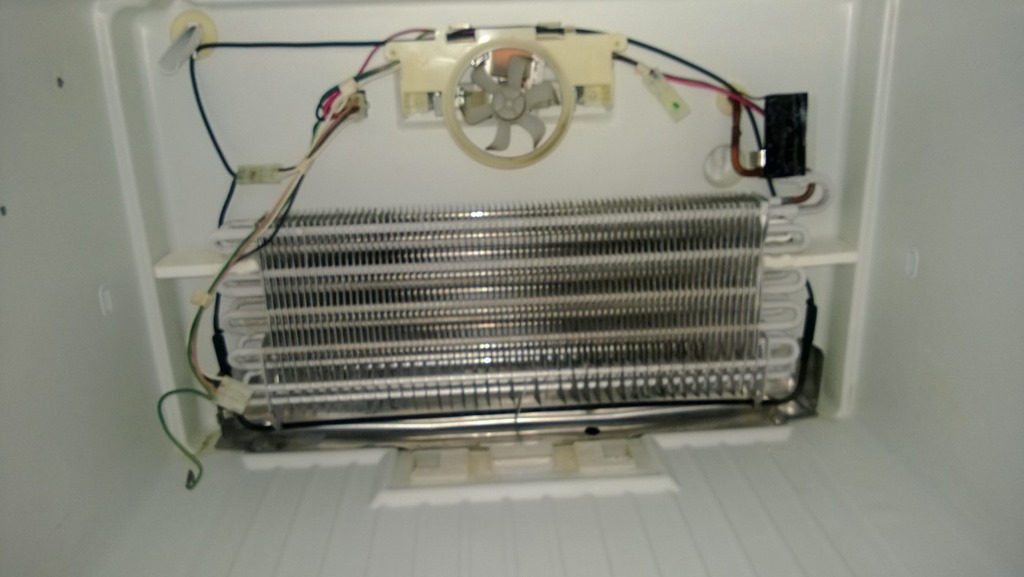
Assuming you don’t have water simply running into the freezer compartment from the ice maker, this issue is usually caused by the defrost drain becoming clogged and icing up.  If you aren’t familiar with how a frostless refrigerator works, a defrost timer turns on a heating element (the long, black thing in the picture) on a periodic basis to melt the ice that forms on the coils of the evaporator.  The water drips into the stainless trough and down the drain hole and tube into the drip pan at the bottom of the fridge.  The water in the drip pan evaporates due to the heat of the condenser and the fan below.  But, what would cause this problem in the first place, you ask? 

Well, if the refrigerator is tilted too far forward, it is possible the water dripping off the evaporator during the defrost cycle is running into the freezer compartment (which can be fixed by adjusting the feet on the front of the fridge), but it is more likely the problem is caused by some bit of food or debris entering the drain, starting a clog and then beginning the vicious ice cycle.  Fixing this problem takes a little time, but it’s pretty straightforward.

Empty the freezer and take out the wire shelf by tilting to one side or the other and lifting it out of the way.

Then, remove the ice maker.  While I don’t have a picture of this, there are usually 3 screws that have to be loosened or removed, two on top and one on bottom.  Many times the top one or two screws don’t have to be completely removed, just loosened enough to lift up on the icemaker and unhook it from the screws.  Once you detach the icemaker, there is a single connector that you must disconnect so it can be extricated from the freezer. 

After the icemaker, you’ll notice two screws that hold the back in place.  These need to be removed and then, depending upon your current ice buildup, you will probably need to use a hair dryer to melt the ice so you can completely remove the back of the freezer.  When you do, what you should see is the evaporator and fan, as seen in the picture.

WP_20140103_002

Offset, over to the right is the drain hole in question.  Using the hair dryer, take your time and melt the ice (it’s probably easier and safer if you unplug the fridge).  I used a shop vac to vacuum up the water from melting the ice along the way.  At some point, you should be able to heat up some water to the boiling point and pour it down the drain hole.  This should clear the drain tube and the water should be running into the drip pan at the bottom of the refrigerator.  If you use a flashlight and peek under the fridge, you should be able to see it running into the pan (hopefully you HAVE a pan!).

If you remove the cardboard back off the fridge, you should see the tube and be able to access it with your shop vac.  Looking into the pan, I noticed the "crap" that ended up in it…it appeared to be pieces of chicken and other food products.  I vacuumed the water out of the drip pan and then used the shop vac to pull a suction on the tube, using my hands to seal the interface.  Then I ran some more super hot water down the drain a few more times.  Here is the final result. 

WP_20140103_003

After getting it all cleaned out, it’s time to put it all back together.  Put the back on, install the icemaker and insure the correct tilt of the fridge by making sure the door closes on its own when you release it.

My advice to you is to keep your freezer clean and be aware of any "accidents" that occur that may unknowingly initiate the process again in the future.

Posted in Appliance Repair, Home Repair | 1 Comment »

Argument "SMTP" for option "connection" is not valid. The command line parameters are invalid.

Posted by Russell Wright on November 18, 2013

When scheduling an SSIS package deployed to SQL Server the job failed.  The job history indicates my SMTP connection is invalid for some reason.  So, I checked the command line created by the job scheduler.

Argument “SMTP” for option “connection” is not valid.  The command line parameters are invalid.  The step failed.

What you will see is the /CONNECTION parameter for the SMTP connection manager is enclosed in “\ and \” characters.  Not sure why, but you can see this is also the case for the SQL Server connection manager, but it doesn’t suffer from the same problem.

Before:

/CONNECTION “SMTP Connection Manager”; “\”SmtpServer=smtp.mail.mycompany.com;UseWindowsAuthentication=False;EnableSsl=False;\””

image

After:

/CONNECTION “SMTP Connection Manager”; “SmtpServer=smtp.mail.mycompany.com;UseWindowsAuthentication=False;EnableSsl=False;”

image

Making this simple change seems to have corrected the issue.

Posted in SQL Server | Leave a Comment »